Understanding Cover Letter Templates
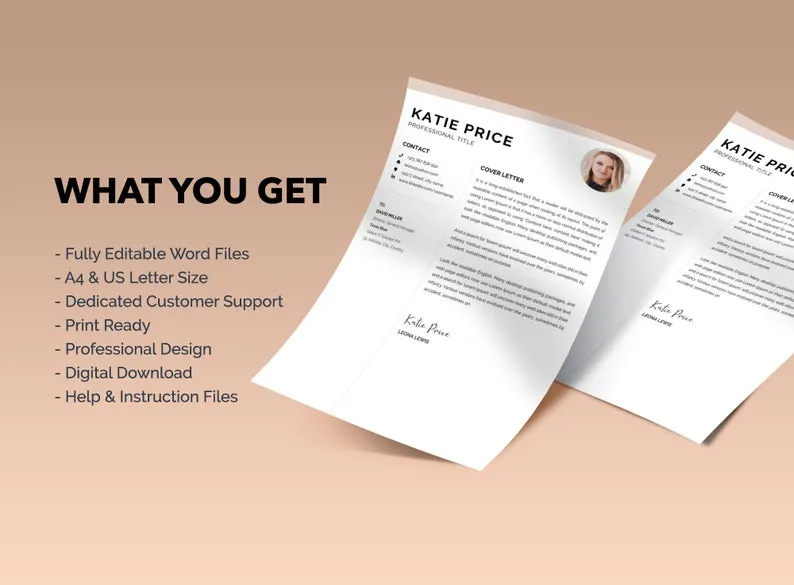
A cover letter template in Microsoft Word provides a pre-designed structure and format for your job application cover letter. It serves as a foundation, offering a framework to organize your thoughts, highlight your skills, and showcase your qualifications. By using a template, you save time and ensure a professional presentation, making a positive first impression on potential employers. These templates often include placeholders for your personal information, the date, the recipient’s details, and the main body of the letter where you describe your suitability for the position. It’s a crucial step in crafting a document that gets noticed. Using Word templates streamlines the creation process, letting you focus on content.
Why Use a Cover Letter Template?
Using a cover letter template offers several advantages. It streamlines the creation process, saving you time and effort. Templates provide a structured format, ensuring your letter is well-organized and easy to read. This structured approach helps you present your qualifications and skills in a clear, concise, and professional manner. Templates also help maintain a consistent look. They also help you to avoid common formatting errors and ensures your document looks polished and professional. This attention to detail reflects positively on your application and makes you more professional, and thus more memorable.
Benefits of using Word Templates

Microsoft Word templates offer numerous benefits for creating cover letters. First and foremost, they are readily available and easy to access directly within the Word application. This eliminates the need to search for and download templates from external sources. They also provide a range of designs, from simple and classic to modern and creative, catering to various industries and personal preferences. Word templates often include helpful formatting suggestions, ensuring your cover letter is well-structured and visually appealing. Another advantage is the ease of customization; you can easily modify the text, fonts, colors, and layout to match your personal brand and the specific job you’re applying for. Moreover, you can save time by not having to create a layout from scratch, which is especially useful when you’re applying for multiple jobs.
Choosing the Right Microsoft Word Template
Selecting the right Microsoft Word cover letter template is crucial for making a strong first impression. Consider your industry and the company culture. If applying for a formal position, opt for a classic and professional template. For creative roles, you might choose a template with a more modern design. Pay attention to the layout and formatting. Ensure the template is easy to read, with clear headings, appropriate font sizes, and sufficient white space. Also, check for flexibility. Choose a template that allows you to easily customize the content and layout without significantly altering the overall design. Look for templates that include placeholders for all necessary information, such as your contact details, the date, the recipient’s details, and the main body of the letter. Remember, the goal is to find a template that complements your skills and experience while aligning with the job’s requirements.
Where to Find Cover Letter Templates
There are several excellent resources for finding cover letter templates. Microsoft Word itself is an excellent starting point, offering a variety of built-in templates accessible directly from the application. You can find these templates under the ‘New’ tab when you open Word. Many online resources also provide free and premium cover letter templates. Websites like Canva, and Resume.io offer a wide selection of templates you can download and customize in Word. When choosing a template, consider the design, format, and customization options available. Ensure that the template aligns with your industry and the specific job application. Look for templates in .docx format to ensure they are fully compatible with Microsoft Word. Remember to review the terms of use before downloading any template, particularly if you plan to use it for commercial purposes.
Microsoft Word’s Built-in Templates

Microsoft Word’s built-in cover letter templates are a convenient and readily available option. To access these templates, open Microsoft Word and go to ‘File’ > ‘New’. In the search bar, type ‘cover letter’ to browse the available options. These templates vary in design, from simple and professional to more creative layouts, offering a good starting point for different job applications. The advantage of using these templates is their seamless integration with Word’s features. You can easily customize the text, fonts, colors, and layout using Word’s editing tools. The built-in templates provide a structured framework. They include placeholders for your personal information, the date, the recipient’s details, and the main body of the letter. This helps you organize your content and present your qualifications effectively. These templates are ideal for quick application and are simple to use, especially if you are already familiar with the Word interface. They are also free, making them a cost-effective solution for job seekers.
Online Template Resources
Numerous online resources offer a vast selection of cover letter templates, providing a wide range of designs and customization options. Websites such as Canva, Resume.io, and others host numerous templates designed for different industries and job roles. Many of these resources offer free templates, making them accessible to job seekers on a budget. Premium templates are also available, often providing more advanced features and design options. When selecting an online template, consider the design, layout, and formatting. Ensure the template is easy to read and allows for customization. It is also important to confirm the template’s compatibility with Microsoft Word. Look for templates that come in .docx format or are easily adaptable to Word. Review the terms of use before downloading any template, especially if you plan to use it for commercial purposes. Online resources often provide helpful tutorials and guidance. They help users customize the templates and write effective cover letters.
Customizing Your Cover Letter in Word
Customizing your cover letter template in Microsoft Word is essential for making it unique and tailored to your needs. Begin by personalizing the template with your contact information, the date, and the recipient’s details. Then, replace the placeholder text with your own content, including your skills, experiences, and qualifications. Use Word’s editing tools to adjust the fonts, font sizes, colors, and layout to match your personal brand or the job requirements. Ensure that the formatting is consistent throughout the document. Make sure it’s easy to read. Consider adding a professional headshot. Use Word’s formatting options to create clear sections and headings, making it easier for the reader to scan the letter. Review the template and make sure everything aligns with the job application. Tailor the content to the specific requirements. Customizing is key to showcasing your unique value to the employer.
Personalizing the Template

Personalizing your cover letter template involves several key steps to ensure your document reflects your unique qualifications and personality. Start by replacing the placeholder information with your own contact details, including your name, phone number, email address, and professional social media profiles. Customize the salutation to address the hiring manager or the company. Research the company and the specific role you’re applying for, and use the name of the hiring manager, if known. Use the main body of the letter to highlight your relevant skills, experiences, and achievements. Tailor your content to the job description, emphasizing the skills and qualities that align with the position’s requirements. Add personal anecdotes and examples to make your letter more engaging and memorable. Proofread the letter carefully and make sure that the tone and language match your personality and the company culture. Personalized templates stand out and increase your chances of success.
Formatting and Layout
Formatting and layout are essential for creating a visually appealing and professional cover letter in Word. Use a clear and easy-to-read font, such as Arial, Calibri, or Times New Roman, in a size between 10 and 12 points. Maintain consistent formatting throughout the document, including font style, size, and spacing. Use appropriate margins (typically one inch on all sides) to create white space and improve readability. Divide your cover letter into clear sections, such as a header, introduction, body paragraphs, and closing, to organize your content effectively. Use headings and subheadings to break up large blocks of text and make it easier for the reader to scan the letter. Align the text consistently, either left-aligned or justified, and use single or 1.15-line spacing to enhance readability. Use bolding to highlight key points and bullet points to list important information concisely. A well-formatted cover letter presents a professional image and increases your chances of getting noticed.
Content Creation for your Cover Letter
Creating compelling content for your cover letter requires careful consideration of your skills, experience, and the specific requirements of the job. Start by writing a concise and engaging opening that immediately grabs the reader’s attention and states your interest in the position. Highlight your relevant skills and experience, emphasizing how they align with the job description. Provide specific examples of your achievements and quantify your accomplishments whenever possible. Tailor your content to the job. Customize your cover letter to include the keywords and phrases from the job posting. Use a professional and enthusiastic tone, showcasing your personality and passion for the role. Keep your letter concise and focused. Aim to convey your key qualifications and value proposition within one page. Proofread the letter carefully to ensure it is free of errors and well-written. Your cover letter is your first chance to impress, so make the most of the opportunity to present yourself effectively.
Essential Cover Letter Sections

A well-structured cover letter typically includes several essential sections. Start with a header that includes your contact information and the date. Then, include the recipient’s contact details, such as the hiring manager’s name, title, and company address. The introduction should immediately state your interest in the position and mention where you found the job posting. In the body of the letter, highlight your relevant skills and experiences, providing specific examples of your achievements and explaining how they align with the job requirements. Use bullet points to make it easy to scan your accomplishments. The closing should reiterate your interest, express your enthusiasm, and include a call to action, such as requesting an interview. Finally, end with a professional closing, such as ‘Sincerely’ or ‘Best regards,’ followed by your typed name. Each section serves a specific purpose, creating a cohesive and compelling document.
Writing a Compelling Opening
The opening of your cover letter is crucial for grabbing the reader’s attention and setting the tone for the rest of the document. Start by stating your interest in the position and mentioning where you found the job posting. Briefly highlight your most relevant skills and experiences, making a strong first impression. Show enthusiasm for the opportunity and express your interest in the company. Avoid generic openings, and try to personalize your letter by addressing the hiring manager directly, if possible. If you have a mutual connection, mention it to establish an immediate rapport. Focus on a specific achievement or skill that aligns with the job requirements. Clearly state the position you are applying for and why you are a good fit. This ensures that your letter captures the reader’s interest right away. An effective opening sets the stage for a successful application.
Highlighting Skills and Experience
Effectively highlighting your skills and experience is crucial in your cover letter. Focus on the skills and experiences that are most relevant to the job requirements. Review the job description carefully and identify the key skills and qualifications the employer is seeking. Use the STAR method (Situation, Task, Action, Result) to structure your examples. Describe a situation, the task you faced, the actions you took, and the positive results you achieved. Quantify your achievements whenever possible, using numbers and data to demonstrate the impact of your work. Provide specific examples of how you have used your skills to achieve successful outcomes in previous roles. Use action verbs to showcase your abilities and create a dynamic and engaging narrative. Align your skills and experiences with the job description. Make sure your cover letter is tailored to the specific requirements of the position. Highlighting the right skills and experiences makes you more likely to stand out.
Quantifying Achievements

Quantifying your achievements in your cover letter is a powerful way to demonstrate your value to potential employers. Use numbers, data, and metrics to showcase the impact of your work. Instead of saying ‘Improved customer satisfaction,’ state ‘Increased customer satisfaction by 15% within six months.’ Provide specific examples and results that illustrate your accomplishments. For example, if you managed a project, state the budget, timeline, and outcomes. If you increased sales, specify the percentage or amount. Using quantitative data makes your accomplishments more tangible and believable. Quantifying your achievements helps employers understand the value you bring to the table. It also showcases your ability to achieve results and makes you stand out from other candidates. Remember to back up your claims with facts and evidence. Quantifiable results create a more compelling argument for your candidacy.
Crafting a Strong Closing
The closing of your cover letter should leave a lasting positive impression and encourage the hiring manager to take action. Restate your interest in the position and reiterate why you are a good fit for the role. Express your enthusiasm and confidence in your ability to contribute to the company’s success. Include a clear call to action, such as requesting an interview. Make it easy for the hiring manager to contact you by providing your phone number and email address. Thank the hiring manager for their time and consideration. Use a professional closing, such as ‘Sincerely’ or ‘Best regards,’ followed by your typed name. Before submitting, reread the entire letter to ensure it flows well. The closing provides the last opportunity to reinforce your qualifications, show your interest, and encourage further engagement, increasing your chances of securing an interview.
Proofreading and Editing
Proofreading and editing your cover letter is a critical step in ensuring a polished and professional document. Start by carefully reviewing your letter for any grammatical errors, spelling mistakes, and punctuation errors. Use a grammar checker, such as Grammarly or the one built into Microsoft Word, to identify potential issues. Then, read the letter aloud to catch any awkward phrasing or unclear sentences. Check for consistency in formatting, including font style, size, and spacing. Ensure that your contact information is accurate and up-to-date. Have a trusted friend or colleague review your letter for a fresh perspective. Ask them to check for clarity, conciseness, and overall readability. Take the time to revise and refine your language, ensuring that your message is clear, concise, and impactful. Proofreading demonstrates your attention to detail. A well-edited cover letter increases your chances of making a positive impression and advancing to the next stage of the hiring process.
Ensuring Error-Free Content

Ensuring your cover letter contains error-free content is essential for making a strong first impression. Carefully proofread your letter for any grammatical errors, spelling mistakes, and punctuation errors. Use a grammar checker, such as the one built into Microsoft Word or Grammarly, to help identify potential issues. Read the letter aloud to catch any awkward phrasing or unclear sentences. Check for consistency in formatting, including font style, size, and spacing. Verify that your contact information is accurate and up-to-date. Look for any typos or inconsistencies in the company’s name, the hiring manager’s name, and the job title. Ask a friend or colleague to review your letter for a fresh perspective. They may catch errors you missed. Focus on clarity, conciseness, and accuracy throughout your cover letter. Error-free content reflects professionalism, attention to detail, and increases your chances of success.
Formatting for Readability
Formatting your cover letter for readability is critical for ensuring that the hiring manager can easily scan and understand your qualifications. Use a clear and easy-to-read font, such as Arial, Calibri, or Times New Roman, in a size between 10 and 12 points. Maintain consistent formatting throughout the document, including font style, size, and spacing. Use appropriate margins (typically one inch on all sides) to create white space and improve readability. Divide your cover letter into clear sections, such as a header, introduction, body paragraphs, and closing, to organize your content effectively. Use headings and subheadings to break up large blocks of text and make it easier for the reader to scan the letter. Align the text consistently, either left-aligned or justified, and use single or 1.15-line spacing to enhance readability. The goal is to make your letter visually appealing and easy to navigate. Well-formatted cover letters increase the chances of your application getting noticed and considered.
Saving and Submitting Your Cover Letter
Saving and submitting your cover letter correctly is the final step in the application process. Save your cover letter as a PDF to ensure that the formatting remains consistent across different devices and operating systems. Use a professional file name, such as ‘YourName_CoverLetter_JobTitle.pdf’, to make it easy for the hiring manager to identify your document. Before submitting, double-check the job posting for any specific instructions regarding file format or submission methods. If the job application requires you to submit your cover letter through an online portal, follow the instructions carefully. Always attach your cover letter and resume separately. If submitting via email, include a brief and professional subject line, such as ‘Application for [Job Title] - [Your Name]’. In the body of the email, briefly reiterate your interest in the position and mention the attached documents. Ensure the email address is correct. Then, send a test email to yourself to verify that the attachments appear as expected. Saving and submitting your cover letter professionally shows that you understand the importance of proper formatting and presentation.
Saving as a PDF
Saving your cover letter as a PDF is the recommended best practice for ensuring that your formatting and layout remain consistent across different devices and operating systems. To save your document as a PDF in Microsoft Word, go to ‘File’ > ‘Save As’. In the ‘Save as type’ dropdown menu, select ‘PDF (*.pdf)’. Choose a suitable location to save your file and give it a professional file name. Before saving, review your document to ensure that all formatting, including fonts, spacing, and images, appears as intended. PDF files preserve the original formatting of your document, preventing any unexpected changes when viewed on different devices. After saving as a PDF, it’s always a good idea to open the PDF file to verify that everything looks correct. This step ensures your cover letter presents a professional and polished appearance to potential employers. Saving your cover letter as a PDF protects the document’s integrity and enhances your overall professionalism.
File Naming Conventions
Using professional file naming conventions is essential for submitting your cover letter and other application documents. When naming your cover letter, include your full name, the document type (‘Cover Letter’), and optionally, the job title. For example, ‘JaneDoe_CoverLetter_MarketingManager.pdf’. Avoid using spaces in your file name. Instead, use underscores or hyphens. Ensure that the file name is clear, concise, and easily identifiable. Using a consistent and professional file naming system helps the hiring manager organize and identify your application documents. It also demonstrates your attention to detail and professionalism. If you are submitting multiple documents, such as a resume and references, use a consistent naming format for each file. Always use the correct file format (typically PDF) and ensure the file name accurately reflects the document’s content.
Best Practices and Tips
Following best practices and tips can significantly improve the effectiveness of your cover letter. Tailor each cover letter to the specific job. Research the company and the role thoroughly. Use keywords and phrases from the job description. Highlight your most relevant skills and experiences, providing specific examples and quantifiable results. Keep your cover letter concise and focused, aiming for one page. Proofread your letter carefully for any grammatical errors, spelling mistakes, and punctuation errors. Maintain a professional tone throughout the document and use clear and concise language. Personalize your letter by addressing the hiring manager directly, if possible. Include a call to action in your closing. Request an interview. Show enthusiasm for the position and the company. Save your cover letter as a PDF. Ensure the formatting is consistent. Always use a professional file naming convention. Following these best practices will help you create a compelling cover letter that increases your chances of getting noticed and landing an interview.
Tailoring to the Job Description
Tailoring your cover letter to the job description is one of the most crucial steps in the application process. Carefully review the job description and identify the key skills, qualifications, and experiences that the employer is seeking. Use these keywords and phrases throughout your cover letter. Show how your skills and experiences directly align with the requirements of the position. Provide specific examples and quantifiable results that demonstrate your ability to meet the employer’s needs. Customize your letter to address the specific needs of the company and the role. Make sure your content reflects the company’s values and culture. When tailoring your cover letter, focus on the most relevant skills and experiences. Highlight what makes you unique. Tailoring makes your application more likely to grab the hiring manager’s attention.
Keeping it Concise and Professional
Keeping your cover letter concise and professional is vital for making a strong impression. Aim for a one-page letter, focusing on the most relevant information. Use clear and concise language. Avoid jargon and overly complex sentences. Get straight to the point. Highlight your most important skills and experiences. Keep your tone professional and enthusiastic. Avoid being overly casual or informal. Structure your letter logically, using clear headings and paragraphs. Use a professional font and formatting to enhance readability. Proofread your letter carefully for any grammatical errors, spelling mistakes, and punctuation errors. Ensure that the content is focused on the job requirements and your ability to meet them. Demonstrate respect for the reader’s time. Keeping your cover letter concise and professional maximizes the impact of your message and increases your chances of success.